Real-Time Input
See key presses, clicks and scrolling as they happen.
Denerim Test Desktop
Check keyboards, mice and headphones in one native desktop app. Inspect keys, scroll input, side buttons and audio channels in a focused test environment.
 Denerim Desktop
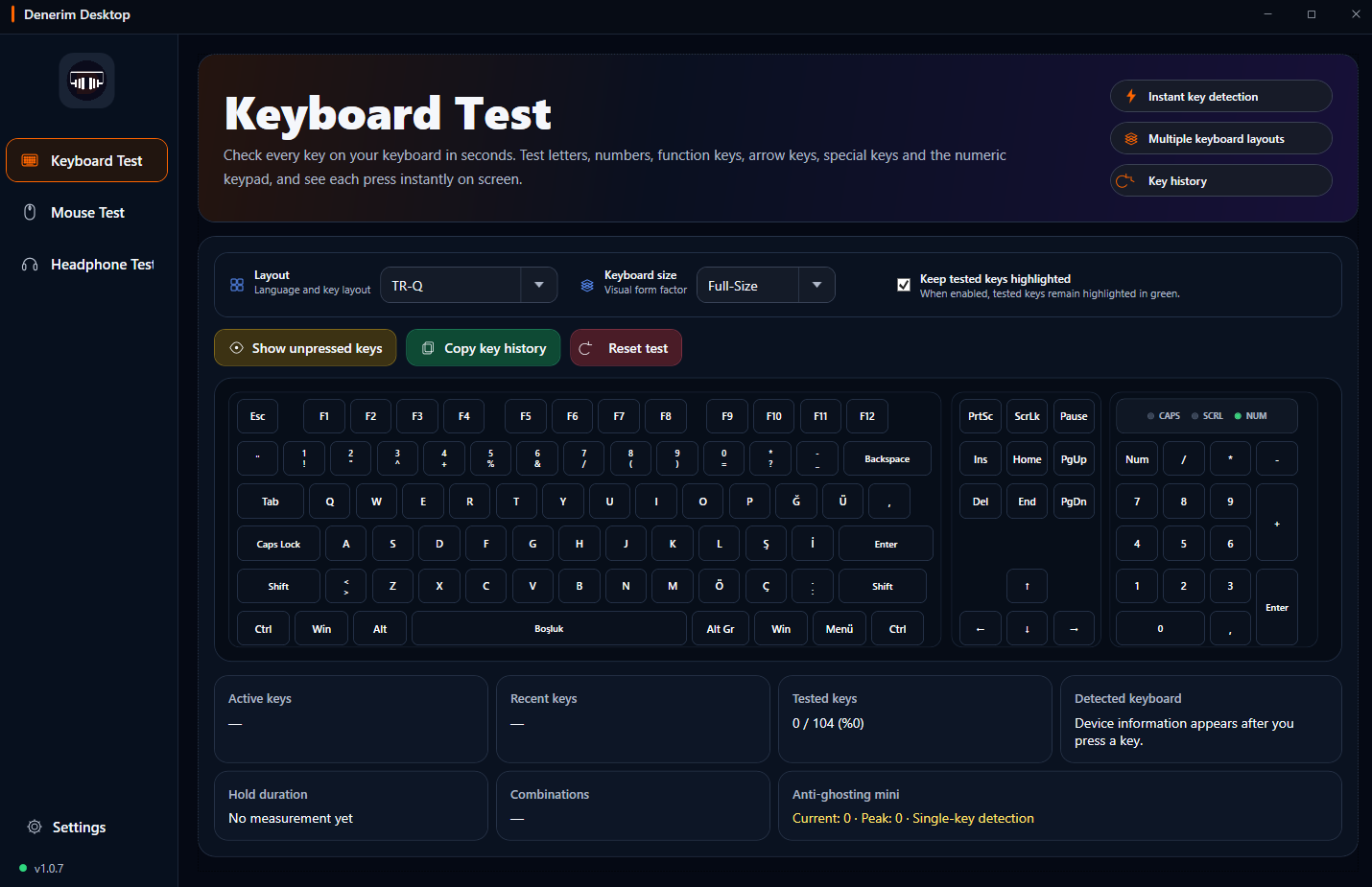
See key presses, clicks and scrolling as they happen.
Access keyboard, mouse and headphone tests from one place.
Use a focused workspace designed for larger displays and physical peripherals.
Each module is designed to make essential hardware checks quick and easy to understand.
Use a visual layout to verify that every key is detected correctly.
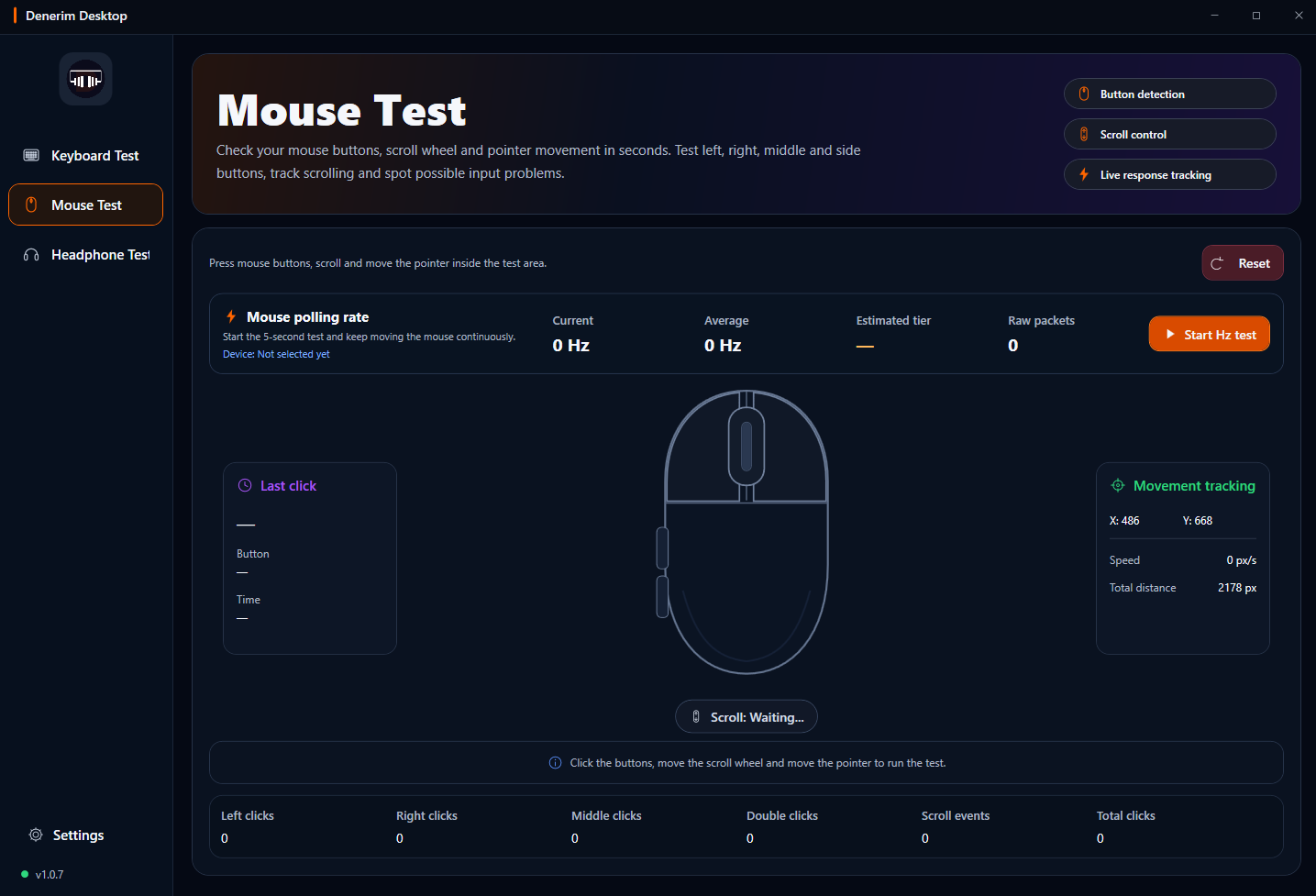
Verify buttons, scroll-wheel movement and pointer input on one screen.
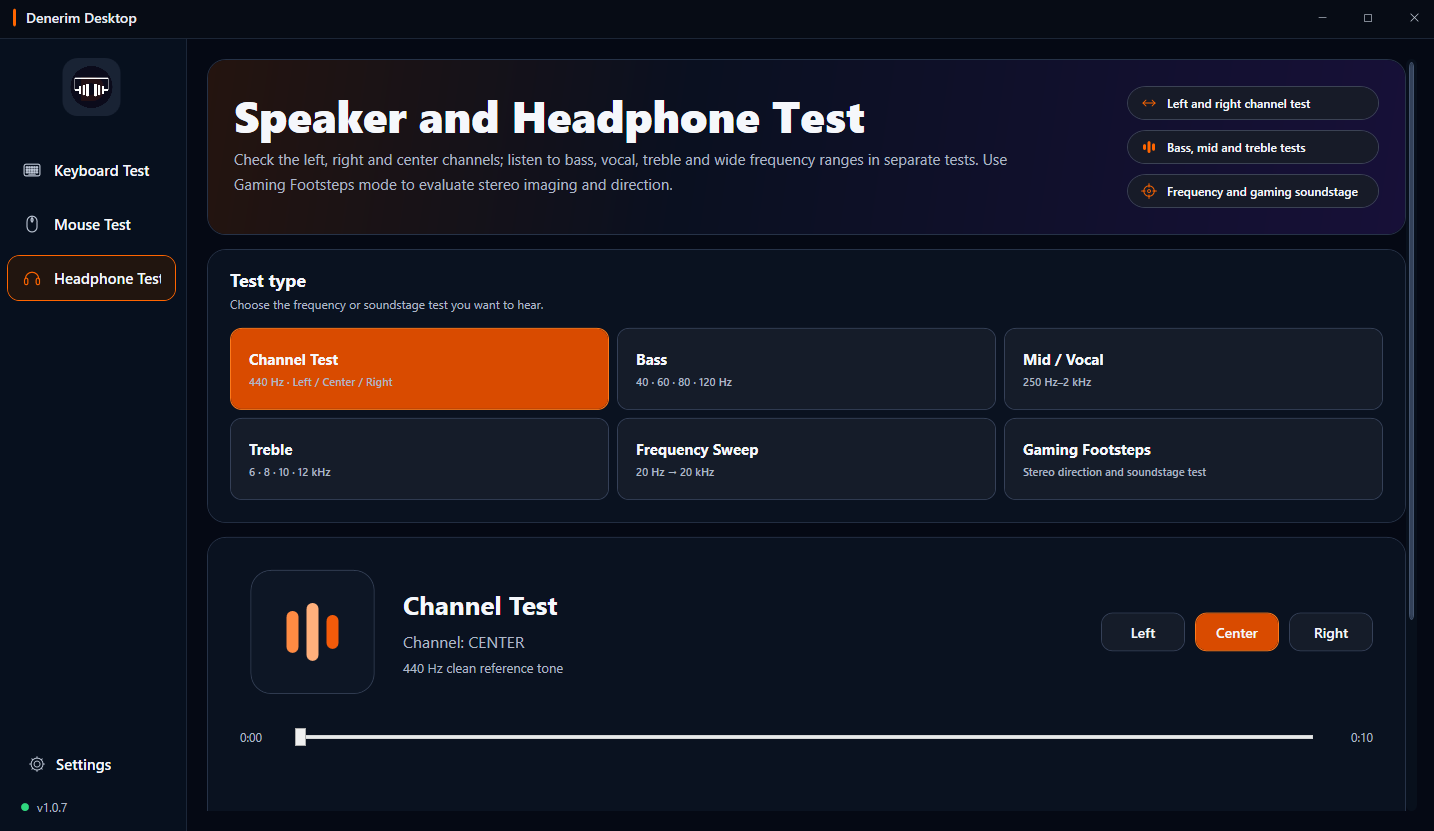
Check left and right channels to confirm that stereo routing works correctly.
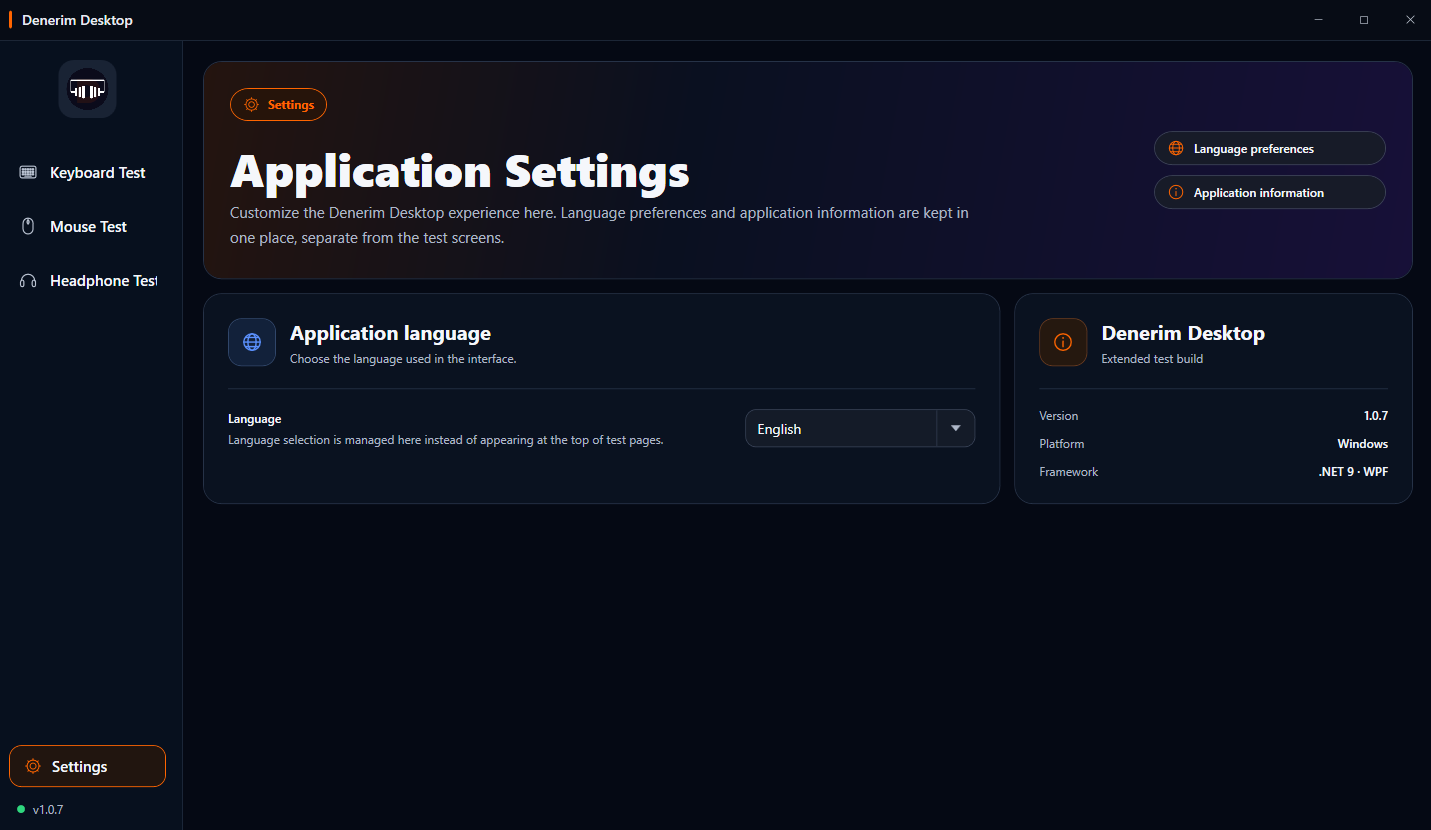
Test modules use a focused, distraction-free interface that matches the app's dark glass theme.
Open a module and begin checking your device without complicated setup or lengthy configuration.
Install Denerim Desktop safely through Microsoft Store.
Open the keyboard, mouse or headphone test you need.
Press keys, move the mouse or listen to each audio channel to complete the check.
The basic requirements for running the app and testing physical devices.
A PC running Windows 10 or Windows 11.
A system capable of running the x64 version of Denerim Desktop.
A keyboard, mouse or headphones connected by USB, Bluetooth or wireless receiver.
Microsoft Store access for installation and updates.
Common questions before downloading the app.
It checks the essential functions of physical keyboards, mice and headphones on a Windows PC.
The current version focuses on keyboards, mice and headphones. Additional modules may be added in later updates.
Internet access is required for Microsoft Store installation and updates. The core test functions run on your computer.
Run keyboard, mouse and headphone tests from one Windows app.